
Color Settings – Sitegenix.io
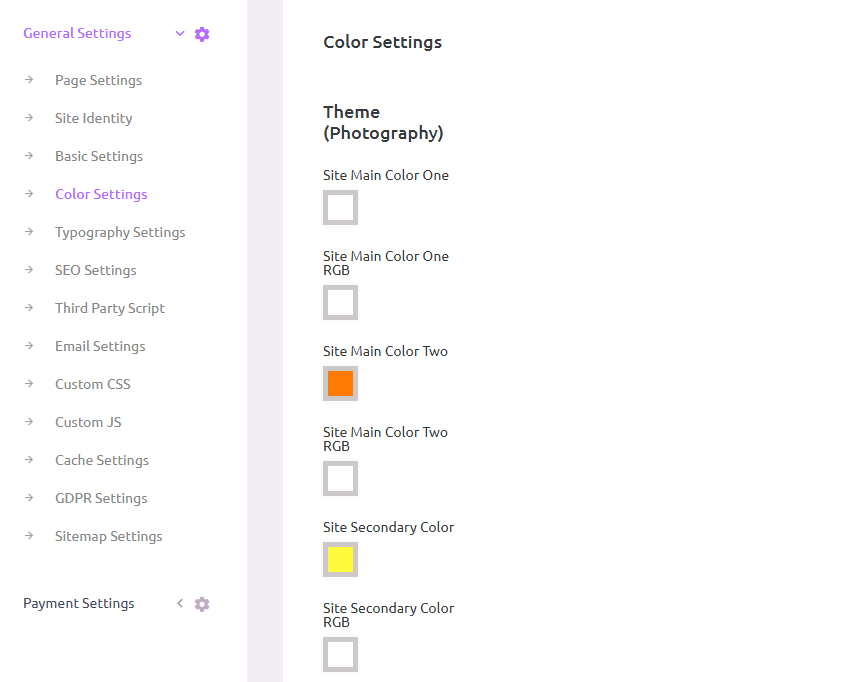
Steps to Change Website Colors:
1.
Access Color Settings:
In the Super Admin Dashboard, navigate to the left-hand sidebar.
Click on "General Settings" to expand the available options.
Then click on "Color Settings".
2.
Customize Website Colors:
In the Color Settings tab, users can customize various colors across the website. This includes:
Background Color: Change the website's background to any color that suits the brand or theme.
Text Color: Adjust the color of text for different elements (headings, body text, etc.).
Link Colors: Customize the color of links and hover effects.
Button Colors: Modify the color of call-to-action buttons and links.
Use the color picker or hex values to specify the desired colors.
After making changes, click "Save Changes" to apply the updated color scheme across the site.
Tips for Effective Color Selection:
- Consider your brand identity when selecting colors.
- Ensure sufficient contrast between text and background colors for readability.
- Use complementary colors for a harmonious look.
- Test your color scheme on different devices to ensure consistency.
- Limit your color palette to 3-5 colors for a professional appearance.