
Custom CSS and JavaScript – Sitegenix.io
Overview
Sitegenix.io allows Super Admins to customize the website's appearance and behavior by adding Custom CSS (Cascading Style Sheets) and Custom JavaScript (JS). This is particularly useful for making design changes and adding additional functionality that isn't covered by the default settings or pre-built options in the system.
Steps to Add Custom CSS and Custom JS:
Access Custom Code Settings:
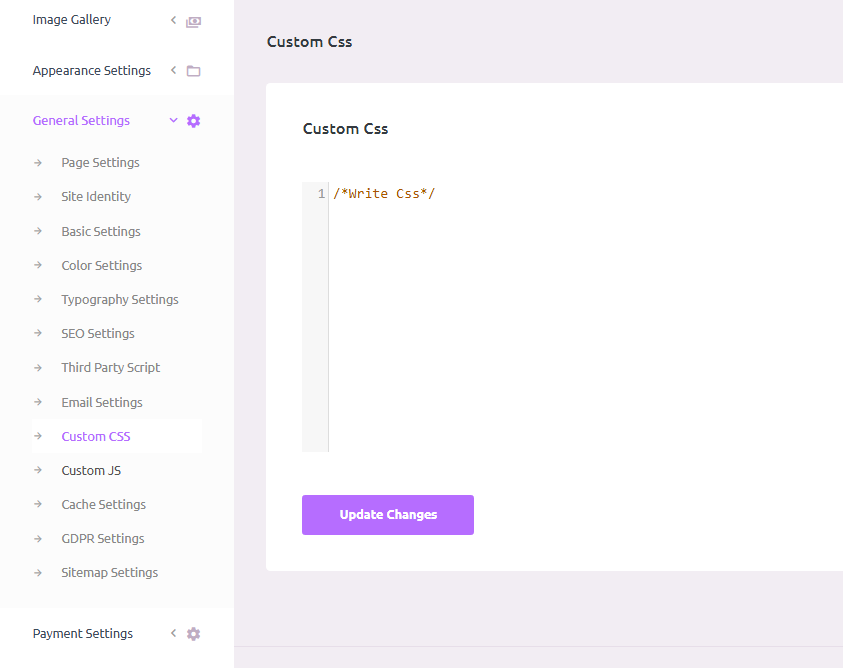
In the Super Admin Dashboard, go to the sidebar and click on "General Settings".
From the General Settings tab, select "Custom CSS & JS".
This will open the section where you can add your custom CSS and JavaScript code.
Adding Custom CSS:
In the Custom CSS field, you can enter your own CSS code to modify the design, layout, and appearance of the website.
You can add styles to fonts, colors, margins, padding, positioning, and much more.
For example, you might add:
body {
  background-color: #f4f4f4;
}

.header {
  font-size: 24px;
  color: #333;
}
Once you have entered the desired CSS code, click "Save Changes" to apply the styles to your website.
Adding Custom JavaScript:
In the Custom JS field, you can add your own JavaScript to enhance website functionality, create animations, or handle interactive elements.
JavaScript can be used to modify page behavior, handle form submissions, add event listeners, and much more.
For example, you might add:
document.addEventListener("DOMContentLoaded", function() {
  alert("Welcome to the website!");
});
Once your JavaScript is added, click "Save Changes" to apply the script to your site.
Benefits:
Full Customization: Adding Custom CSS allows you to tweak the visual appearance of the website, creating a unique design without modifying the core theme files.
Enhanced Functionality: Custom JavaScript gives you the ability to implement advanced interactivity, handle form validations, create custom behaviors, and integrate external scripts.
No Theme Modifications: By using the Custom CSS and Custom JS fields, you can make changes that are not dependent on altering the core theme files, making it easier to maintain updates and customizations.
Best Practices:
- Always test your custom code thoroughly before applying it to a live site to ensure it doesn't break existing functionality.
- Use browser developer tools to test and debug your CSS and JavaScript before adding it to Sitegenix.
- Keep a backup of your custom code in a separate file in case you need to restore it after theme updates.
- Consider using CSS media queries to ensure your custom styles work well on all device sizes.
- For JavaScript, wrap your code in a function to avoid conflicts with other scripts on the page.