
Portfolio Management
Learn how to showcase your work with SiteGenix's portfolio management tools.
Overview
The Portfolio Management module in SiteGenix allows you to showcase your work, projects, or products in a visually appealing and organized manner. This feature is perfect for creative professionals, agencies, freelancers, and businesses that want to highlight their accomplishments and capabilities.
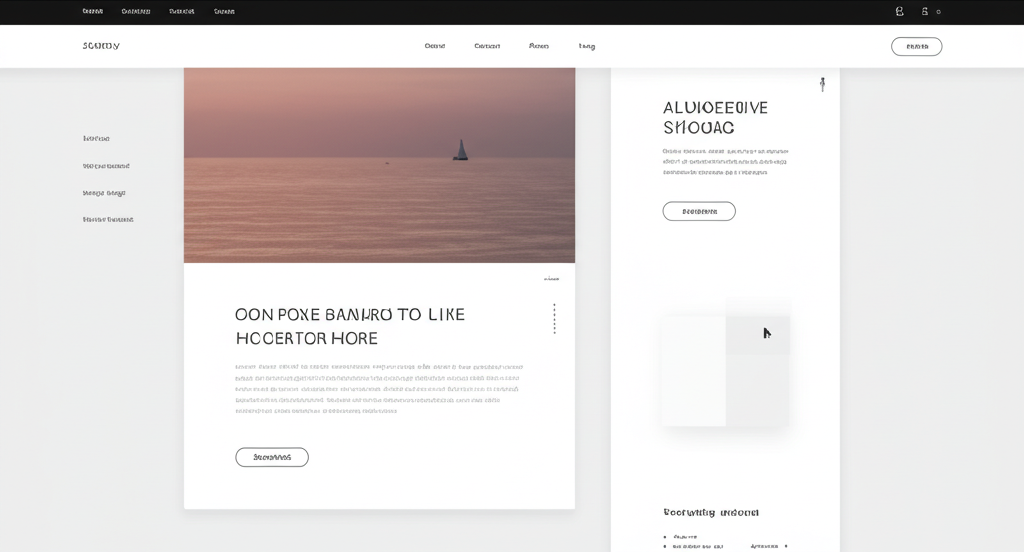
With the Portfolio module, you can create detailed project showcases with descriptions, images, videos, client information, and more. You can organize portfolio items into categories and display them in various layouts to best present your work.
Key Features
Project Categories
Organize your work into logical categories to help visitors find relevant projects.
Multiple Layout Options
Choose from grid, masonry, carousel, and other layouts to display your portfolio items.
Image Galleries
Include multiple images for each portfolio item with lightbox functionality.
Video Integration
Embed videos from YouTube, Vimeo, or other platforms to showcase your work.
Client Information
Add client details, testimonials, and project dates to provide context.
Filtering Options
Allow visitors to filter portfolio items by category, tag, or other criteria.
Creating Portfolio Items
Follow these steps to create a new portfolio item in SiteGenix:
- Log in to your SiteGenix dashboard
- Navigate to "Advanced Tools" in the main menu
- Select "Portfolio" from the dropdown menu
- Click "Add New Item" to create a new portfolio entry
- Fill in the portfolio item details:
- Title: Name of the project or work
- Description: Detailed information about the project
- Featured Image: Main image that represents the project
- Gallery: Additional images showcasing different aspects
- Client: Name of the client (optional)
- Project Date: When the project was completed
- Project URL: Link to the live project (optional)
- Categories: Select relevant categories for the item
- Tags: Add tags to further categorize the item
- Click "Save" to create the portfolio item
Portfolio Categories
Organizing your portfolio into categories helps visitors navigate your work more easily. To create and manage portfolio categories:
- Go to the Portfolio section in your dashboard
- Click on the "Categories" tab
- Click "Add New Category"
- Enter a name and description for the category
- Upload a category image (optional)
- Click "Save" to create the category
You can edit or delete categories at any time. When you delete a category, the portfolio items within it are not deleted but become uncategorized.
Displaying Your Portfolio
There are several ways to display your portfolio on your SiteGenix website. Choose the method that best suits your design and business needs:
Portfolio Page
Create a dedicated page that displays all your portfolio items, optionally organized by category. This is automatically created when you enable the Portfolio module.
Portfolio Widget
Add a portfolio widget to any page to display selected items or categories in a grid, masonry, or carousel format.
Featured Items
Highlight specific portfolio items on your homepage or other key pages by marking them as "featured" in the item settings.
Category Pages
Create pages that display portfolio items from specific categories, ideal for businesses with distinct types of work.
Customizing Portfolio Displays
SiteGenix offers various customization options for how your portfolio is displayed. To customize the appearance:
- Go to the Portfolio section in your dashboard
- Click on the "Settings" tab
- Choose your preferred display options:
- Layout style (grid, masonry, carousel, etc.)
- Number of items per page
- Sorting order (newest first, alphabetical, custom)
- Information to display (client, date, description, etc.)
- Image size and aspect ratio
- Filtering options for visitors
- Click "Save Changes" to apply your customizations
You can also customize individual portfolio item pages by editing the item and adjusting its specific display settings.
Best Practices
Follow these best practices to create an effective portfolio that showcases your work and impresses potential clients:
- Quality over quantity: Include your best work rather than everything you've ever done.
- High-quality images: Use professional, high-resolution images that showcase your work accurately.
- Detailed descriptions: Provide context about each project, including challenges, solutions, and results.
- Consistent presentation: Maintain a consistent style and format across all portfolio items.
- Client testimonials: Include feedback from clients to add credibility to your work.
- Regular updates: Add new projects and remove outdated ones to keep your portfolio fresh.
- Call-to-action: Include a clear call-to-action for visitors who are impressed by your work.