
Advertisement Management
Learn how to manage advertisements on your SiteGenix website.
Overview
The Advertisement Management module in SiteGenix allows you to create, manage, and display advertisements on your website. This feature is useful for monetizing your website, promoting your own products or services, or showcasing partner offers.
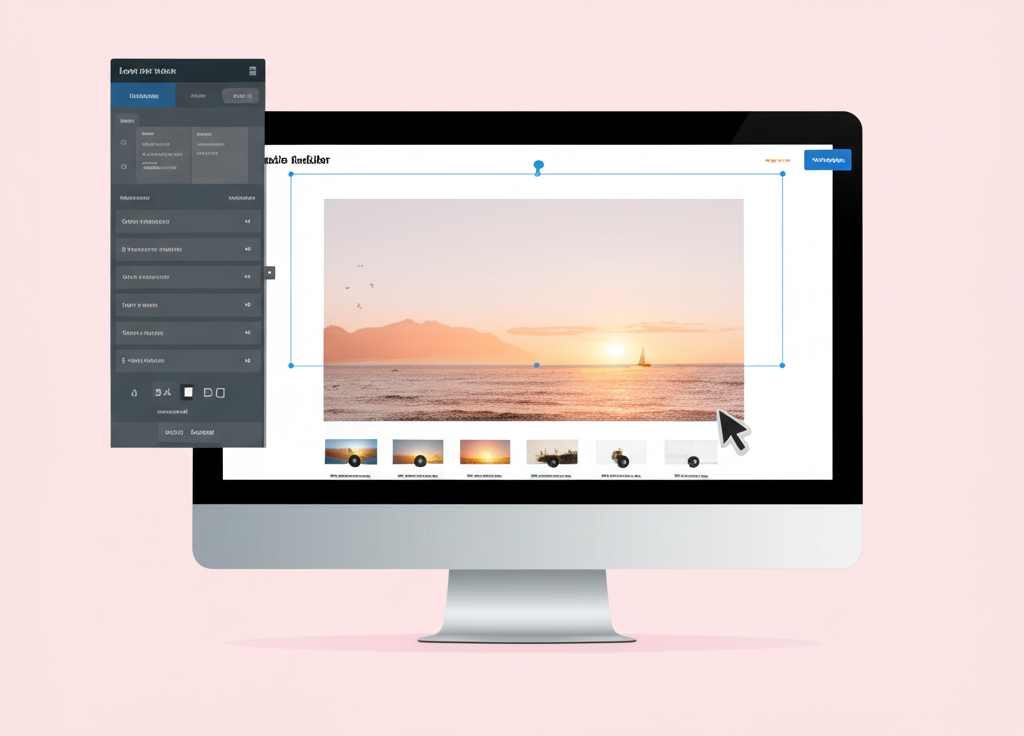
With the Advertisement module, you can control where ads appear, how long they run, and track their performance through detailed analytics.
Key Features
Ad Placement
Define specific locations on your website where advertisements can appear.
Scheduling
Set start and end dates for advertisements to control when they are visible.
Targeting
Display ads to specific audience segments based on location, device, or behavior.
Analytics
Track impressions, clicks, and conversion rates to measure ad performance.
Multiple Formats
Support for banner ads, pop-ups, inline ads, and video advertisements.
Third-Party Integration
Easily integrate with Google AdSense, Amazon Associates, and other ad networks.
Creating Advertisements
Follow these steps to create a new advertisement in SiteGenix:
- Log in to your SiteGenix dashboard
- Navigate to "Advanced Tools" in the main menu
- Select "Advertisement" from the dropdown menu
- Click "Add New Advertisement" to create a new ad
- Fill in the advertisement details:
- Title: Internal name for the advertisement
- Type: Banner, popup, inline, or video
- Content: Upload image or HTML code for the ad
- Link: Destination URL when the ad is clicked
- Size: Dimensions of the advertisement
- Schedule: Start and end dates (optional)
- Placement: Where the ad will appear on your site
- Targeting: Audience segments who will see the ad (optional)
- Click "Save" to create the advertisement
Ad Placements
Ad placements define where advertisements can appear on your website. SiteGenix provides several default placement options, and you can create custom placements as needed.
Default Placements
Header
Appears at the top of the page, typically above the main navigation.
Footer
Appears at the bottom of the page, above the site footer.
Sidebar
Appears in the sidebar area of pages that include a sidebar.
In-Content
Appears within the main content area, typically between paragraphs.
Creating Custom Placements
To create a custom ad placement:
- Go to the Advertisement section in your dashboard
- Click on the "Placements" tab
- Click "Add New Placement"
- Enter a name and description for the placement
- Specify the size constraints (width and height)
- Select the pages where this placement should be available
- Click "Save" to create the placement
Managing Advertisements
The Advertisement Management dashboard provides tools to manage all aspects of your advertisements:
- Active Ads: View and manage currently running advertisements.
- Scheduled Ads: View ads that are scheduled to run in the future.
- Expired Ads: View ads that have completed their scheduled run.
- Analytics: View performance metrics for all advertisements.
- Settings: Configure global advertisement settings.
To edit an existing advertisement, click on its name in the list. To delete an advertisement, select it and click the "Delete" button.
Ad Rotation
SiteGenix allows you to set up ad rotation for any placement, which will cycle through multiple advertisements in the same spot. To set up ad rotation:
- Go to the Advertisement section in your dashboard
- Click on the "Rotation" tab
- Click "Create New Rotation"
- Select the placement where the rotation will occur
- Add the advertisements you want to include in the rotation
- Set the rotation interval (how often ads change)
- Choose the rotation method (sequential or random)
- Click "Save" to activate the rotation
Third-Party Ad Networks
SiteGenix supports integration with popular third-party ad networks. To integrate with an ad network:
- Go to the Advertisement section in your dashboard
- Click on the "Integrations" tab
- Select the ad network you want to integrate with
- Follow the specific instructions for that network
- Enter your publisher ID or other required credentials
- Configure the ad sizes and placements
- Click "Save" to activate the integration
Currently supported ad networks include Google AdSense, Amazon Associates, and Media.net.
Best Practices
Follow these best practices to create effective advertisements that generate revenue without compromising user experience:
- Balance: Don't overwhelm your visitors with too many ads. A few well-placed ads are more effective than many intrusive ones.
- Relevance: Ensure ads are relevant to your content and audience to improve click-through rates.
- Mobile optimization: Make sure ads display properly on mobile devices, where many users will view your site.
- Testing: Regularly test different ad placements, sizes, and types to find what works best for your audience.
- Transparency: Clearly label sponsored content and advertisements to maintain trust with your audience.
- Loading speed: Be mindful of how ads affect your site's loading speed, as slow sites can drive visitors away.