
Services
Learn how to showcase your services effectively on your SiteGenix website.
Overview
The Services module in SiteGenix allows you to showcase your business services in an organized and visually appealing way. This feature is perfect for service-based businesses, consultants, agencies, and professionals who want to highlight their offerings.
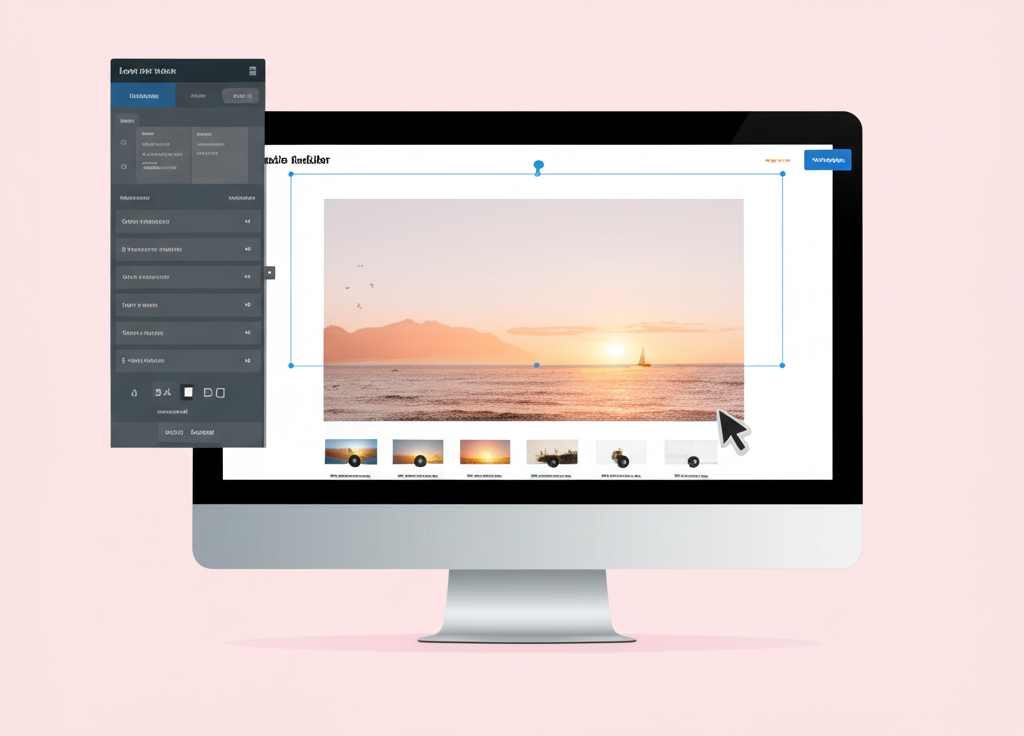
With the Services module, you can create detailed service listings with descriptions, pricing, features, and custom images. You can organize services into categories and display them in various layouts to match your website's design.
Key Features
Service Categories
Organize your services into logical categories to help visitors find what they're looking for.
Custom Service Pages
Create dedicated pages for each service with detailed information and call-to-action buttons.
Pricing Options
Display service pricing clearly with options for fixed prices, ranges, or "contact for pricing".
Service Features
List the key features or benefits included with each service to highlight its value.
Setting Up Services
Follow these steps to set up and manage services on your SiteGenix website:
- Log in to your SiteGenix dashboard
- Navigate to "Advanced Tools" in the main menu
- Select "Services" from the dropdown menu
- Click "Add New Service" to create your first service listing
- Fill in the service details (name, description, price, etc.)
- Upload a featured image for the service
- Add service features or benefits
- Select a category or create a new one
- Click "Save" to publish the service
Service Categories
Organizing your services into categories helps visitors navigate your offerings more easily. To create and manage service categories:
- Go to the Services section in your dashboard
- Click on the "Categories" tab
- Click "Add New Category"
- Enter a name and description for the category
- Upload a category image (optional)
- Click "Save" to create the category
You can edit or delete categories at any time. When you delete a category, the services within it are not deleted but become uncategorized.
Displaying Services on Your Website
There are several ways to display your services on your SiteGenix website. Choose the method that best suits your design and business needs:
Services Page
Create a dedicated page that displays all your services, optionally organized by category. This is automatically created when you enable the Services module.
Services Widget
Add a services widget to any page to display selected services or categories in a grid, list, or carousel format.
Featured Services
Highlight specific services on your homepage or other key pages by marking them as "featured" in the service settings.
Category Pages
Create pages that display services from specific categories, ideal for businesses with distinct service areas.
Customizing Service Displays
SiteGenix offers various customization options for how your services are displayed. To customize the appearance:
- Go to the Services section in your dashboard
- Click on the "Settings" tab
- Choose your preferred display options:
- Layout style (grid, list, cards, etc.)
- Number of services per page
- Sorting order (alphabetical, newest first, custom)
- Information to display (price, features, buttons, etc.)
- Image size and aspect ratio
- Click "Save Changes" to apply your customizations
You can also customize individual service pages by editing the service and adjusting its specific display settings.
Best Practices
Follow these best practices to create effective service listings that convert visitors into customers:
- Clear descriptions: Write concise but detailed descriptions that explain what the service includes and its benefits.
- High-quality images: Use professional images that represent each service accurately.
- Consistent pricing: Present pricing information consistently across all services.
- Call-to-action: Include clear call-to-action buttons like "Book Now" or "Request Quote".
- Testimonials: Add client testimonials specific to each service to build trust.
- FAQs: Address common questions about each service to reduce inquiry barriers.